# Cách tạo VPS miễn phí trên Google Cloud

**Bước 1.** Truy cập vào trang [Console Cloud Google](https://console.cloud.google.com/getting-started?pli=1)

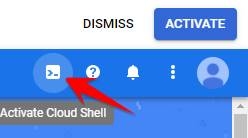
**Bước 2.** Click vào biểu tượng **Active Cloud Shell** ở góc trên bên phải.

<figure><img src="https://anonyviet.com/wp-content/uploads/2021/05/active-shell.jpg" alt=""><figcaption></figcaption></figure>

**Bước 3.** Copy lệnh bên dưới:

```
docker run -p 6080:80 dorowu/ubuntu-desktop-lxde-vnc
```

**Bước 4.** Quay lại cửa sổ Cloud Shell, nhấn tổ hợp phím **Ctrl + V** để dán lệnh vào (bạn không thể click phải chuột để Paste đâu). Sau đó nhấn **Enter** để thực thi lệnh tạo VPS bằng Google Cloud.

<figure><img src="https://anonyviet.com/wp-content/uploads/2021/05/code-tao-vps-google-cloud.jpg" alt=""><figcaption></figcaption></figure>

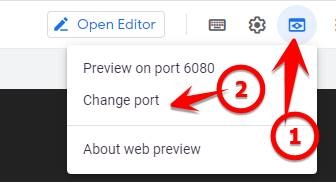
**Bước 5.** Chờ quá trình Download và cài đặt Docker tầm 01 phút, bạn sẽ thấy dòng lệnh đứng yên một chỗ. Bây giờ Click vào biểu tượng **Web Preview**

<figure><img src="https://anonyviet.com/wp-content/uploads/2021/05/change-port-vps-free.jpg" alt=""><figcaption></figcaption></figure>

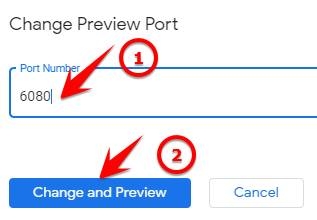
**Bước 6.** Đổi **port** thành **6080** rồi nhấn Change and Preview.

<figure><img src="https://anonyviet.com/wp-content/uploads/2021/05/change-and-preview.jpg" alt=""><figcaption></figcaption></figure>

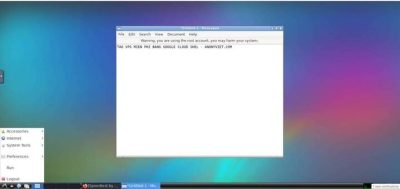
**Bước 7.** Một cửa sổ mới sẽ hiện ra trên trình duyệt web, và bạn có thể Remote vào VPS tại đây. Tính năng novnc giống như teamviewer, bạn có thể điều khiển vps Linux như trên Windows vậy.

<figure><img src="https://anonyviet.com/wp-content/uploads/2021/05/VPS-FREE-GOOGLE-CLOUD-1-1.jpg" alt=""><figcaption></figcaption></figure>


---

# Agent Instructions: Querying This Documentation

If you need additional information that is not directly available in this page, you can query the documentation dynamically by asking a question.

Perform an HTTP GET request on the current page URL with the `ask` query parameter:

```
GET https://docs.nct.name.vn/chia-se/cach-tao-vps-mien-phi-tren-google-cloud.md?ask=<question>
```

The question should be specific, self-contained, and written in natural language.
The response will contain a direct answer to the question and relevant excerpts and sources from the documentation.

Use this mechanism when the answer is not explicitly present in the current page, you need clarification or additional context, or you want to retrieve related documentation sections.